Me and You Tools & Setup
Hardware checks and session setup so puzzles start on time.
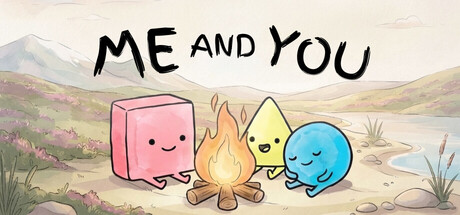
The Tools hub gathers practical setup pages for Me and You: what your PC or Mac needs, how to start an online invite versus local split-screen, and how to keep a two-player session stable. Puzzle games fail less from graphics settings and more from mismatched hosts, wrong controller slots, or unclear who presses start. Use these pages before a demo night so you spend time rewriting rules—not troubleshooting Steam overlays.
What lives under Tools
- System Requirements — Windows and macOS minimums from Steam, controller notes, Steam Deck status, and light bandwidth tips for online play.
- Co-op Setup — step-by-step hosting for online invites, shared or split-screen local play, and Remote Play Together, plus who should start each level.
- Multiplayer Modes — deep comparison of online co-op, local shared/split-screen, and Remote Play Together with latency and couch tips.
Bookmark both if you rotate between living-room couch play and long-distance partners. The same rule language applies in every mode; only the connection path changes.
Why setup pages matter for Me and You
Me and You is designed so both players must act. If one person cannot join, the board is incomplete. A five-minute checklist beats twenty minutes of “can you hear me?” after you already opened Crossroads. Confirm:
- Both Steam accounts can launch the demo or the full game when it releases on November 25, 2026.
- Controllers or keyboards are bound and tested on the title screen—see Controls.
- You agree who hosts. The host typically starts the level; the guest follows the invite or sits on the second local seat.
- Voice chat is ready (Steam, Discord, or in-person). Rule changes need spoken callouts.
- You know how to reset a board without blaming each other—soft resets are normal.
Recommended reading order
New pairs should open Getting Started and How to Play first, then return here for Co-op Setup. Hardware-anxious players start at System Requirements. After one successful Chapter 1 clear, revisit co-op tips on Co-op Tips before Chapter 2 water rooms.
When difficulty spikes, cross-check the Difficulty Hub and the Demo Walkthrough. Tools pages will not spoil solutions; they only keep the session running.
Launch-day use
On full release, re-run the same checklist: update the client, confirm Cloud sync if you care about progress, and decide whether you stay on demo habits or jump straight into new chapters. Keep this hub pinned alongside Release Info and Official Links for Steam and Discord.
Quick links elsewhere on the wiki
- Wiki Overview — big-picture orientation and trailer embed.
- Guides Hub — tutorials, rules, and walkthroughs.
- Updates Hub — demo scope and launch calendar.
- Official Links — Steam store, demo, Discord, Bluesky, and X.
Treat Tools as your preflight panel. Once both players are in the level with working inputs, switch mental modes: push words, break bad sentences, and talk through every IS.
Frequently Asked Questions
Quick answers to the most common questions.
Which Tools page should I open first?
Open System Requirements if you doubt your PC or Mac, then Co-op Setup before inviting a partner. Controllers are covered on the Controls guide.
Do I need a high-end GPU for Me and You?
No. Steam lists Processor and Graphics as Any for the published minimums. A stable Steam install and two inputs matter more than raw GPU power.
Can Tools pages help with Remote Play Together?
Yes. Co-op Setup explains when Remote Play Together is useful versus a native online invite or local split-screen.
Are Tools pages spoiler-heavy?
No. They focus on hardware and session flow. Puzzle solutions live under Guides and the Demo Walkthrough.